I first used Vim around 2003-04, when it was pushed onto us during an undergraduate computer science course — it was either that or Emacs if you were serious about writing code. Twenty-two years on I’m still using it, though very differently now. I’ve tried switching to other editors a few times (once seriously, with VSCode) but always found myself back on Neovim, adding plugins and convincing myself I don’t need whatever convenience I left behind.
The configuration I am describing here is the current state of that: a Neovim 0.11+ setup aimed primarily at Python development, with GitHub integration, a full debugging stack, and a couple of AI tools layered on top.
The configuration is available on GitHub under the MIT licence.
Structure
The entry point is init.vim, which handles plugin declarations, core settings, and keybindings. Everything else lives in lua/ — separate files for each subsystem, loaded in order from init.vim. Load order matters: Mason must come before the LSP configuration.
Plugin Management
I use vim-plug for plugin management. It is not the newest option, but it is reliable, fast, and I have never had a reason to switch. :PlugInstall and :PlugUpdate do what they say, and that is all I need. Adding new plugins is easy, and I’m very used to it now.
UI and Navigation
lualine.nvim replaces the default statusline with something that actually communicates useful information: current mode, git branch, diff stats, diagnostics, filename, encoding, fileformat, filetype, and cursor position.
nvim-web-devicons provides file type icons used by Telescope, Lualine, and other plugins. Requires a Nerd Font — I use JetBrains Mono Nerd Font, installed via Homebrew.
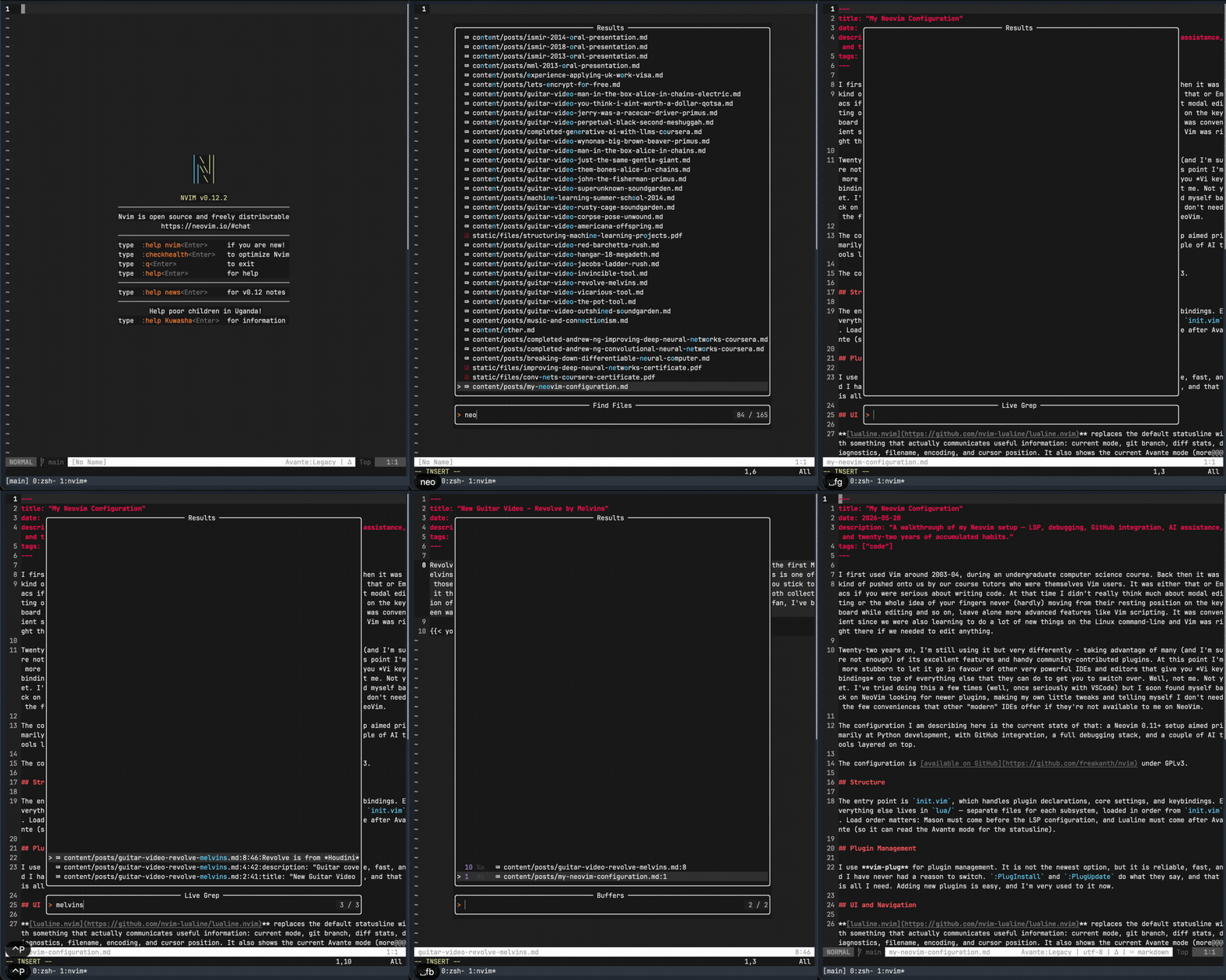
telescope.nvim is the fuzzy finder I use for almost everything: finding files (<Space>ff), live grep across the project (<Space>fg), switching buffers (<Space>fb), searching recently opened files (<Space>fr), and looking up help tags (<Space>fh). It replaces what I previously did with a combination of CtrlP and grep invocations. I have also added a few custom Telescope pickers — <Space>fP for grepping only Python files, <Space>fM for Markdown, and <Space>fT for an interactive prompt to filter by any extension. These exist because the obvious approach — passing ripgrep’s --type flag directly through Telescope — does not work; Telescope does not forward inline ripgrep flag syntax. The workaround is using glob patterns instead.
Package Management
mason.nvim is a package manager for LSP servers, DAP adapters, linters, and formatters. The :Mason UI lets you browse and install them with i. I use it to install Pyright and Ruff, so those are managed independently from any Python virtual environment.
mason-lspconfig.nvim bridges Mason and the LSP configuration. I keep automatic_installation disabled — I prefer to install servers explicitly rather than have them appear silently.
Syntax Highlighting
nvim-treesitter provides syntax highlighting using actual parsers rather than regex-based rules. The difference in accuracy is noticeable, particularly for Python and Lua. I have parsers installed for Python, Lua, Vimscript, Markdown, and CSV.
Honestly, TreeSitter was not something I planned for from the start — it entered the configuration specifically to fix a syntax highlighting problem in Octo PR reviews. When reviewing pull requests, diffs are displayed using Neovim’s diff highlighting. The default DiffAdd and DiffText highlight groups override the foreground colour, which makes syntax colours invisible — everything in added or modified lines shows as light gray. The fix is to set those highlight groups to fg = 'NONE', letting TreeSitter colours show through on top of the diff background. There is also a BufEnter autocmd that forces TreeSitter on any buffer with an octo:// URI, because Octo does not emit the FileType event that would normally trigger it. Once TreeSitter was in for that reason, the benefits for Python and Lua editing were obvious and it became a permanent part of the setup.
LSP and Completion
The LSP setup uses Neovim 0.11’s native vim.lsp.config.* API rather than nvim-lspconfig’s older configuration style. This matters — the old patterns still work but are effectively deprecated, and the native API is cleaner.
I run two LSP servers for Python:
Pyright handles type checking, go-to-definition, references, hover documentation, and rename. It is the primary server for everything that requires understanding the code structurally.
Ruff handles linting and formatting at the LSP level. Its hover provider is disabled in favour of Pyright’s, since Pyright’s documentation is more useful.
Both servers need to know which Python interpreter to use. A get_python_path() function handles this: for uv projects it looks for .venv/bin/python in the project root, which is where uv places the virtualenv by default. It also handles Poetry projects for compatibility (detecting poetry.lock and resolving the path via poetry env info --path), before falling back to pyenv or system Python. This runs at startup, so it picks up the right interpreter for whatever project you opened Neovim in.
nvim-cmp is the completion engine. It pulls from LSP suggestions (cmp-nvim-lsp), the current buffer’s words (cmp-buffer), and file paths (cmp-path). Tab and Shift-Tab cycle through suggestions.
LuaSnip provides snippet expansion, surfaced through nvim-cmp via cmp_luasnip. I use it sparingly — mostly for boilerplate I find myself typing repeatedly.
lsp_signature.nvim shows a floating signature help popup when you type ( or , inside a function call. This is especially useful for Python functions with many keyword arguments — I no longer need to :K back to the function definition to remember parameter order.
Linting and Formatting
ALE runs in parallel with the LSP servers and handles mypy and black. I configure it to fix on save, which means every Python file is formatted by black and ruff, and import ordering is cleaned up automatically. ALE runs asynchronously, so it does not block editing while the linters run. The line length is set to 100 characters to match my project conventions.
There is some intentional overlap between ALE and the LSP servers (both run Ruff), but they serve slightly different purposes: the LSP layer provides real-time diagnostics and code actions as you type, while ALE’s fixers handle the mechanical reformatting on save.
Code Commenting
nerdcommenter handles toggling comments with <Space>cc. I have used this for long enough that the muscle memory is deeply ingrained. It handles line comments, block comments, and works correctly across filetypes without any configuration per-language.
Navigation
vim-easymotion extends Vim’s native movement with label-based jumping. <Space><Space>w assigns a letter to every word beginning visible on screen; typing that letter jumps the cursor there directly. I use it most often when I want to jump somewhere in the visible window that is more than a few lines away but less than a full search away — a gap that w/b/f are too slow to bridge but / feels too heavy for.
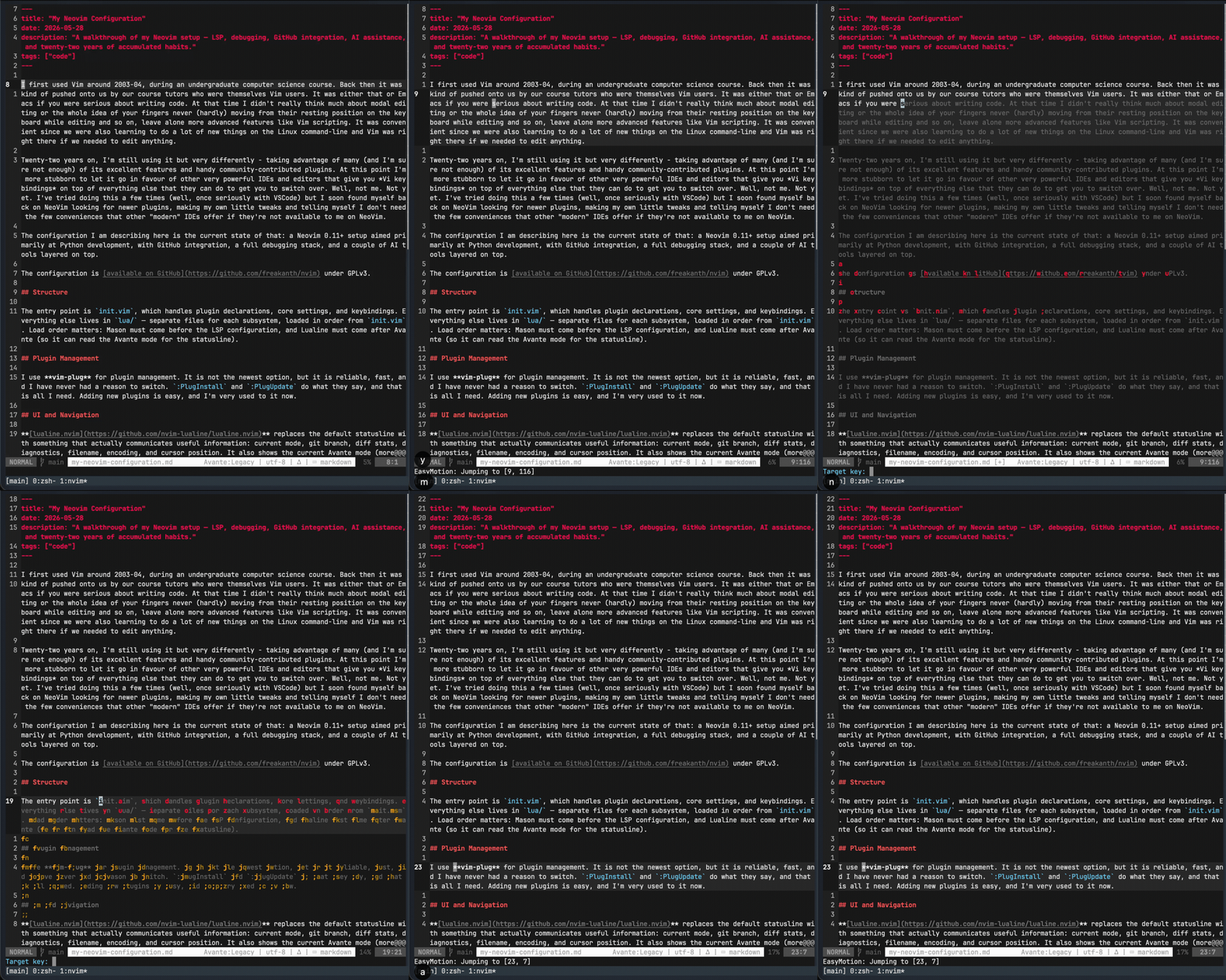
I have to admit though that, while I do love the idea, I don’t use it anywhere as much as I’d like to. It reminds me of the follow mode that some keyboard-oriented web browsers like QuteBrowser (or browser plugins like Vimperator) had.
Git Integration
vim-fugitive has been in my configuration longer than almost anything else. :Git opens the status window (<Space>gs), from which I can stage hunks, view diffs, and write commit messages without leaving Neovim. The full suite of keybindings covers commit (<Space>gc), push (<Space>gp), log (<Space>gl), diff (<Space>gd), and blame (<Space>gb).
octo.nvim brings GitHub pull request and issue management directly into Neovim. I can open a PR with :Octo pr list, check out a branch, start a review, navigate between diff hunks, leave comments on specific lines, resolve threads, and merge — all without switching to a browser. The integration with Telescope means I can fuzzy-search open PRs and issues. This is one of the features I really found to make a difference while reviewing PRs. Not having to switch between the browser where the PR resides and the editor where I check how changes connect to the rest of the codebase is definitely much better for me.
The configuration required some custom work. The original keybindings for opening a PR in the browser and copying its URL were <C-b> and <C-y> — both of which conflict with tmux. Replacing them with gx and <Space>oy was straightforward, but in doing so I discovered that Octo’s built-in implementations do not work correctly inside review diff buffers — they cannot find the PR context in that state. So the replacements became custom wrappers: safe_open_in_browser and safe_copy_url check for an active review first and retrieve the PR details directly from the review object before falling back to Octo’s defaults. Review thread keybindings for resolving and unresolving threads are mapped to <Space>tr and <Space>tu.
Debugging
I spent a while resisting adding a debugger to my Vim setup — I was a heavy ipdb user and dropping a set_trace() call got me through most situations. But once I set up the DAP stack properly, I stopped wanting to go back.
nvim-dap is the Debug Adapter Protocol client. It talks to debugpy (or any other DAP-compliant adapter) and exposes breakpoints, stepping, and the REPL as Neovim commands and keybindings.
nvim-dap-python configures the Python adapter. It uses the same get_python_path() function as the LSP configuration, so it automatically picks up the right interpreter for Poetry and uv projects.
nvim-dap-ui provides the visual debugging interface — a sidebar with scopes, breakpoints, the call stack, and watches, plus a bottom panel for the REPL and console. It opens automatically when a debug session starts and closes when it ends.
nvim-dap-virtual-text shows variable values inline at the end of each line while a session is paused. This is the feature I find most useful — I can see the state of local variables without switching to the scopes panel.
The most involved piece of the debugging setup is a custom :PyDebug command. It started life as a standalone shell script called uv-debug — a wrapper you could copy into your PATH to launch a uv project’s entry point under debugpy and wait for a DAP client to attach. That worked, but it meant context-switching out of Neovim to start the process, then coming back to attach. When I cleaned up the configuration, I folded the whole thing into dap-config.lua as a proper Neovim command, and added Poetry support at the same time via a feature branch.
:PyDebug handles three cases: running a .py file directly, running a module with -m, and looking up a script name in [project.scripts] (or [tool.poetry.scripts]). In all three cases it starts the process with debugpy listening on port 5678, polls until the port is open (up to five seconds), and then attaches the DAP client automatically. It also cleans up any previous debug session before starting a new one.
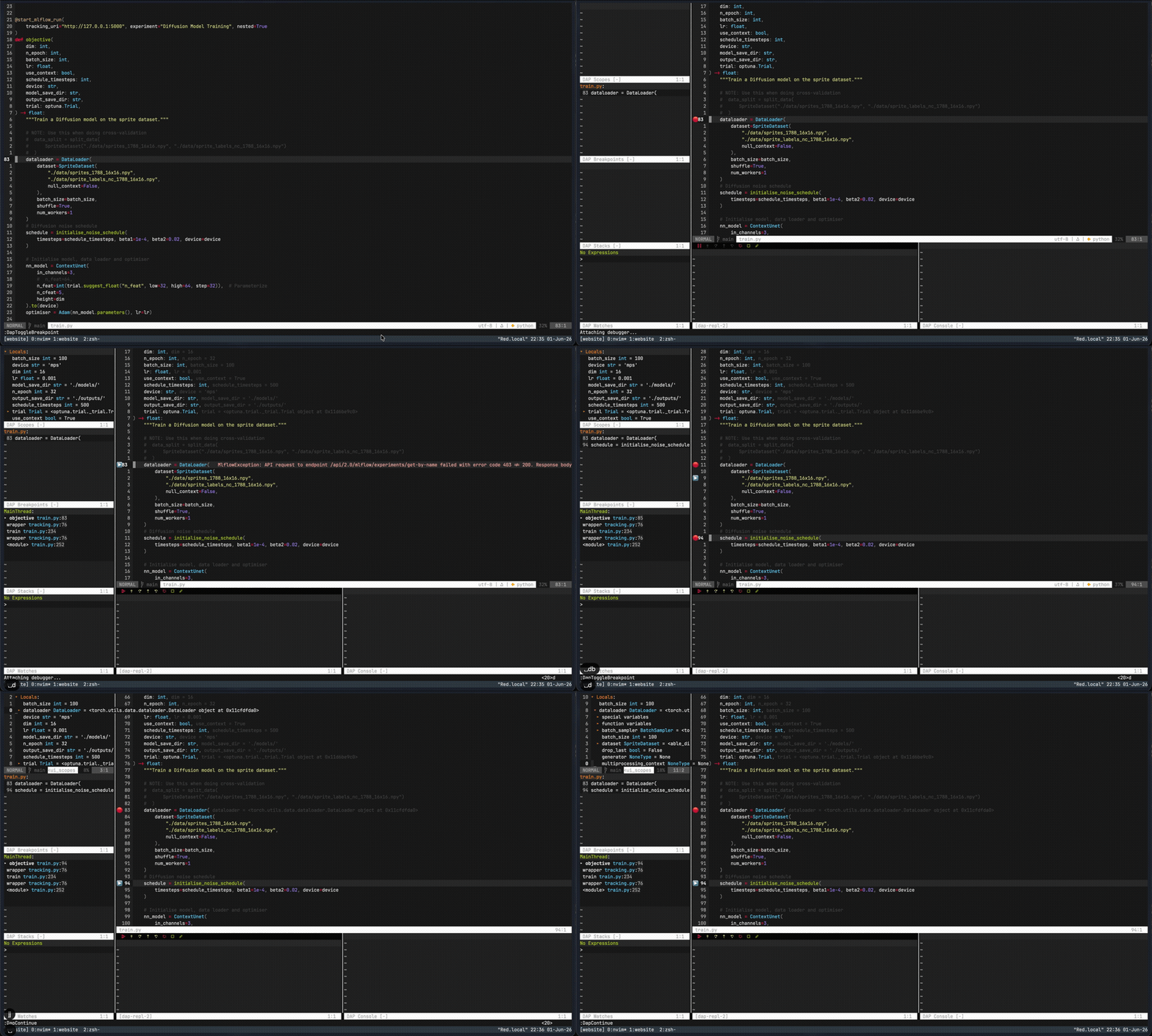
The keybindings follow a <Space>d prefix: toggle breakpoint (db), continue (dc), step into (di), step out (do), step over (dn), terminate (dt), toggle the UI (dr), evaluate expression under cursor (de), and navigate the call stack up and down (du/dd).
LaTeX
vimtex handles LaTeX editing and compilation. I use it infrequently now compared to earlier in my research career, but it is still there when I need it to update my CV, for instance. It is configured to open compiled PDFs in Preview on macOS, using latexmk as the compiler.
AI Assistance
claudecode.nvim integrates the Claude Code CLI directly into Neovim as a terminal panel. <Space>ac toggles it open on the right side of the screen — from there it is the full Claude Code experience, with access to the current project, the ability to read and edit files, and agentic tool use. It authenticates through the existing claude CLI login, so a Claude Pro subscription works without any additional API setup.
I previously used avante.nvim for this, connected to Claude through the Agent Client Protocol bridge. Avante had a nice diff-preview workflow — it would show proposed changes inline before applying anything. But the ACP bridge stopped working for Pro subscribers when Anthropic restricted OAuth token access from third-party integrations, and the native Max-tier OAuth path that replaced it is not available on a Pro plan. claudecode.nvim sidesteps all of that by just running the CLI directly.
Miscellaneous Settings
A few other things worth noting:
Hybrid line numbers — absolute line numbers in insert mode, relative in normal mode. This gives you the best of both: you can see the actual line number when you need it, and relative numbers for 5j-style jumps when you are navigating.
Visual mode search — * and # in visual mode search for the selected text rather than the word under the cursor, without clobbering the unnamed register. This is a trick I picked up somewhere years ago and have copied into every configuration since.
Terminal — :Vt and :Ht open a terminal in a vertical or horizontal split. <C-Q> exits terminal mode back to normal mode. I prefer this to the various terminal manager plugins; it is simple and does what I need.
Colorscheme — monokain, a Monokai variant I have been using long enough that other themes look wrong to me.
Twenty-two years in, the configuration has grown considerably from the .vimrc I started with. And I have to admit that I built this config, often, by tweaking copy-pasted snippets from various sources and, more recently with AI assistance. Most of what is there now I would not have predicted needing when I started — a full DAP stack, GitHub PR reviews in the editor, an AI assistant in a sidebar. But the core of it is the same: modal editing, fast navigation, and the conviction that a terminal-based editor configured exactly to your habits is worth the investment.